The Study Reader
The whole Bible in nine translations, side by side if you like, with the flip between two, and a page set the way you read best.
These were more noble than those in Thessalonica, in that they received the word with all readiness of mind, and searched the scriptures daily, whether those things were so.
Opening the reader
Choose The Study Reader from the menu's Study column or from the Bookshelf. It opens on its start page: the verse for today, Begin at Genesis 1, My Notes and My Progress. Once you have read a little, it also offers Continue reading and Where you left each book.
You can open any chapter by its address: scrollwork.app/app/reader/John.3 opens John 3, and adding
#John.3.16 marks a verse. From a scroll's small reader, Open in the full reader brings you here at the same
place.
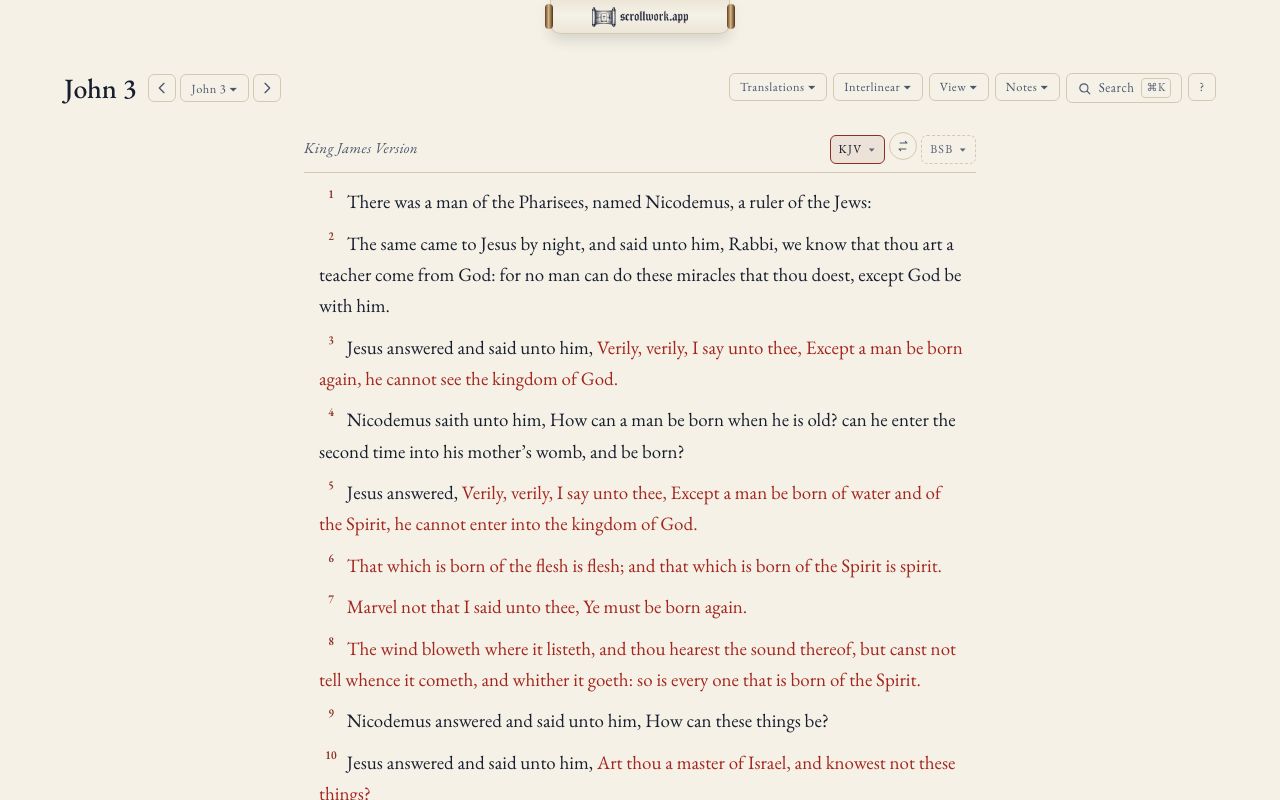
Moving through the Bible
- The arrows beside the chapter's name go to the previous and next chapter. On a phone they read Previous and Next.
- The chapter's name is a button. Press it for Go to a chapter, type a book and chapter (John 3), and press Enter. A book you have read before offers the place you left it first.
- From the keyboard: →, ] or n for the next chapter; ←, [ or p for the previous. Every key is on Keyboard shortcuts.
The toolbar
On a wide screen the tools stand in one row at the top right: Translations, Interlinear, View, Notes, Search and ? (the keyboard shortcuts). On a phone they are folded into the Aa button, with the settings below.
Translations
Nine translations are held, each named in full beside the text it shows:
| Short name | Translation |
|---|---|
| KJV | King James Version |
| BSB | Berean Standard Bible |
| ASV | American Standard Version (1901) |
| BBE | Bible in Basic English |
| DARBY | Darby Translation (1890) |
| WEBSTER | Webster's Bible (1833) |
| WEB | World English Bible |
| YLT | Young's Literal Translation |
| BRENTON | Brenton's Septuagint (1851), Genesis only for now |
Choose a column's translation from the picker at its head. Your first column's choice is remembered. Under Translations, Versions then Manage Bibles sets which translations the pickers offer and in what order.
The original Hebrew and Greek can be read as text too; see The original language.
The flip
Every column holds two translations at once: the one you are reading, and another kept ready beside it. The ⇄ button between their two pickers flips the column from one to the other, keeping your place, so you can read a verse in the King James and see it at once in the Berean Standard Bible:
For God so loved the world, that he gave his only begotten Son, that whosoever believeth in him should not perish, but have everlasting life.
For God so loved the world that He gave His one and only Son, that everyone who believes in Him shall not perish but have eternal life.
Press t to flip the first column from the keyboard. Each column remembers its pair.
Columns side by side
Up to four translations can stand side by side, kept level verse by verse.
- + Translation, under Translations, adds the next one.
- Versions lists the columns; choose None to remove one, or use the × at a column's head.
- How many fit depends on the window: two from a medium window, three and four on wider ones.
View also has Split: a second passage beside the first, with its own chapter picker and Close, so you can read Isaiah 53 beside John 19. On a phone it sits beneath the first.
Setting the page
View holds the reader's own settings, each remembered on this device:
- Columns: one to four.
- Text size: Smaller, Standard, Larger, Largest.
- Line spacing: Compact, Comfortable, Spacious.
- Typeface: Scrollwork's serif, or a plain sans.
- Verse numbers: shown or hidden.
- Width: Comfortable, Wide or the full window.
- Layout: a verse per line, or Paragraphs, which follow the King James's own paragraph marks.
- Paper: Parchment, White, Sepia or Night, the reader's own dark page.
- Focus: after three seconds, every control fades and only the text remains. Move the pointer or press a key to bring them back; Esc leaves Focus.
Paragraphs and columns work with one translation at a time, and the reader says so when one cannot be used.
The look, brightness (light, dark, or following your device) and text size of all of Scrollwork are set on your account page; see Your account and privacy.
Red letters
In the King James Version, the words of Christ are shown in red, in the reader and in the scrolls' small reader.
Choosing and copying verses
- Click a verse's number to select it. Shift-click selects a run of verses; ⌘-click (Ctrl-click on Windows) adds or removes one.
- Copying the text, or Copy to Clipboard in a verse's menu, copies the exact words with the reference and the translation's full name.
Next
The words beneath the translation: The original language. Your notes and highlights: Your study.